
Welcome, fellow developers!
With the rapid rise of AI and tools like ChatGPT, Claude, and others, I started feeling like I was falling behind-especially as a Java developer. Most of the AI ecosystem seems heavily tilted toward Python, and I kept wondering: where do we, as Java developers, fit into this?
This month, I decided to change that. I wanted to explore how Java-based enterprise applications can truly leverage AI and build meaningful, production-ready features using Spring AI.
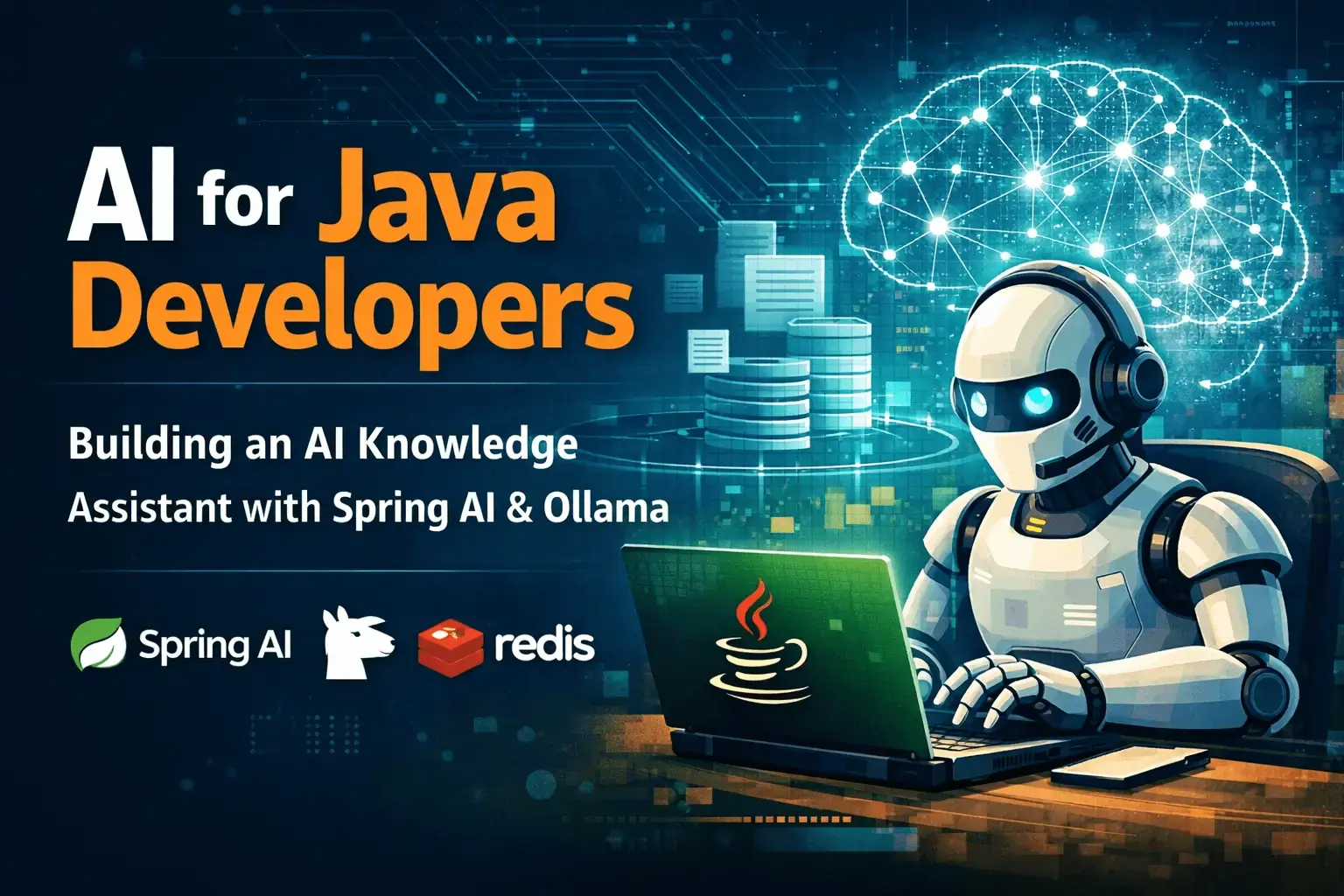
To kick things off, I built an AI Knowledge Assistant application using Spring AI, Ollama, Redis, and a RAG (Retrieval-Augmented Generation) approach. This article series is a step-by-step walkthrough of that journey - covering everything from fundamentals to more advanced integrations.
In this tutorial series, we will build a AI Knowledge Assistant using Spring Boot and Spring AI with a complete RAG (Retrieval-Augmented Generation) pipeline. You will learn how to ingest documents, generate embeddings using Ollama, store them in a vector database, and prepare your backend for AI-powered chat applications.
What We Are Building: AI Knowledge Assistant with Spring AI
Tech Stack for Spring AI RAG Application
Here are the core technologies used in this application and their purpose:
- Spring Boot - Backend framework for building the application
- Spring AI - Integration layer to interact with LLMs and AI components
- Ollama (LLM) - Local Large Language Model for chat completion
- Ollama Embeddings - Generates vector embeddings for semantic search
- Redis - Used for caching responses and improving performance
- Vector Store (File-based / Redis / PGVector) - Stores embeddings for retrieval
- RAG (Retrieval-Augmented Generation) - Enhances responses using contextual data
- Document ETL Pipeline - Handles ingestion, chunking, and embedding of documents
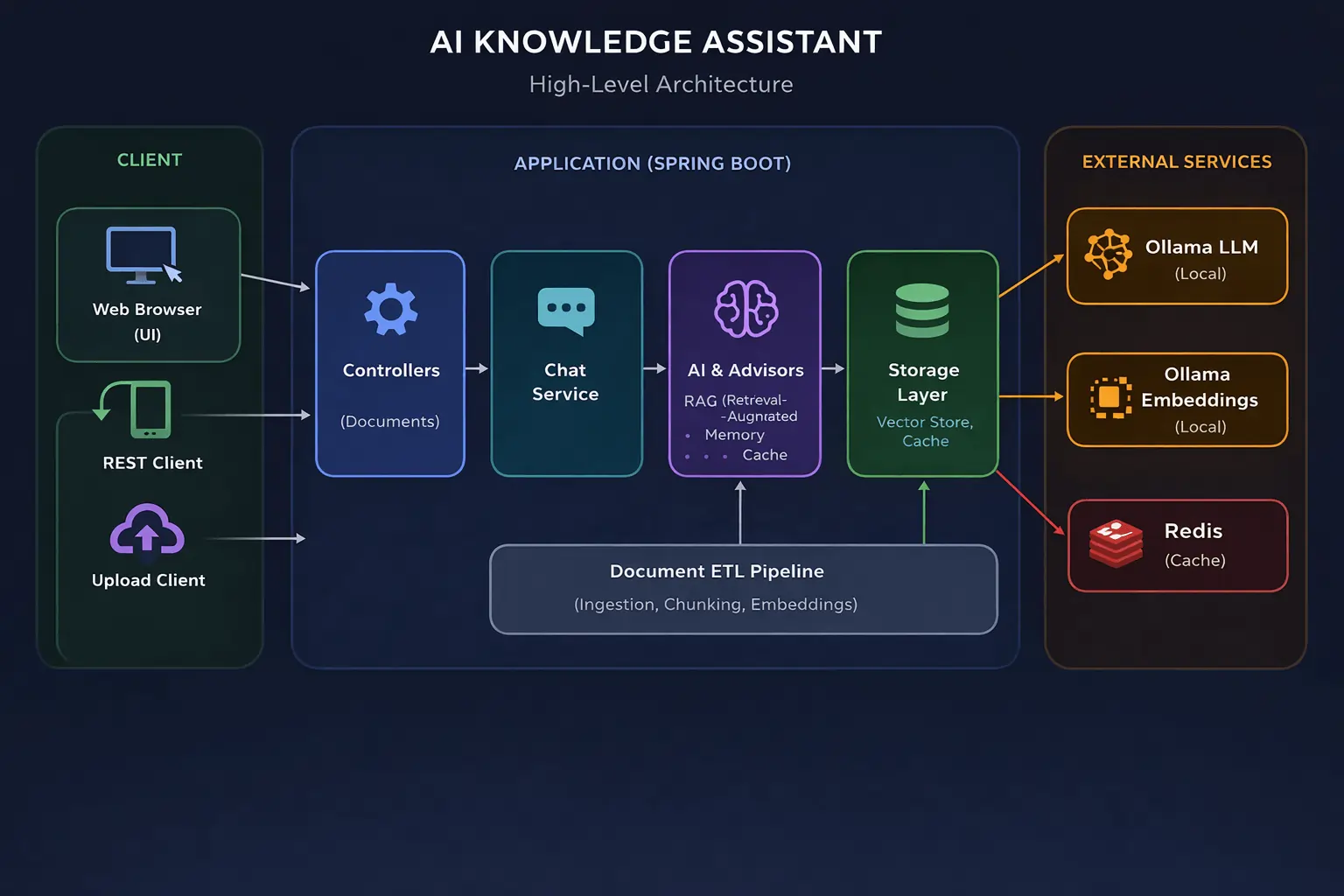
High-Level Architecture of Spring AI RAG Application
Below is the high-level architecture of the AI Knowledge Assistant application, showing how all these components work together.
What This Series Covers
This series is divided into three parts:
-
Building the Foundation
- Setting up a basic Spring AI application
- Implementing a Document ETL pipeline (Ingestion, Chunking, Embeddings)
-
Chat Service with Vector Store
- Creating a chat service using Spring AI with In-memory ChatMemory
- Integrating a simple vector store (Redis-based) for semantic caching
- Building ordered chain of interceptors (Advisors)
-
Advanced Integrations
- Integrating Spring AI with PGVector
- Using Redis Stack for caching and performance optimization
Setting Up Spring Boot AI Project (Step-by-Step)
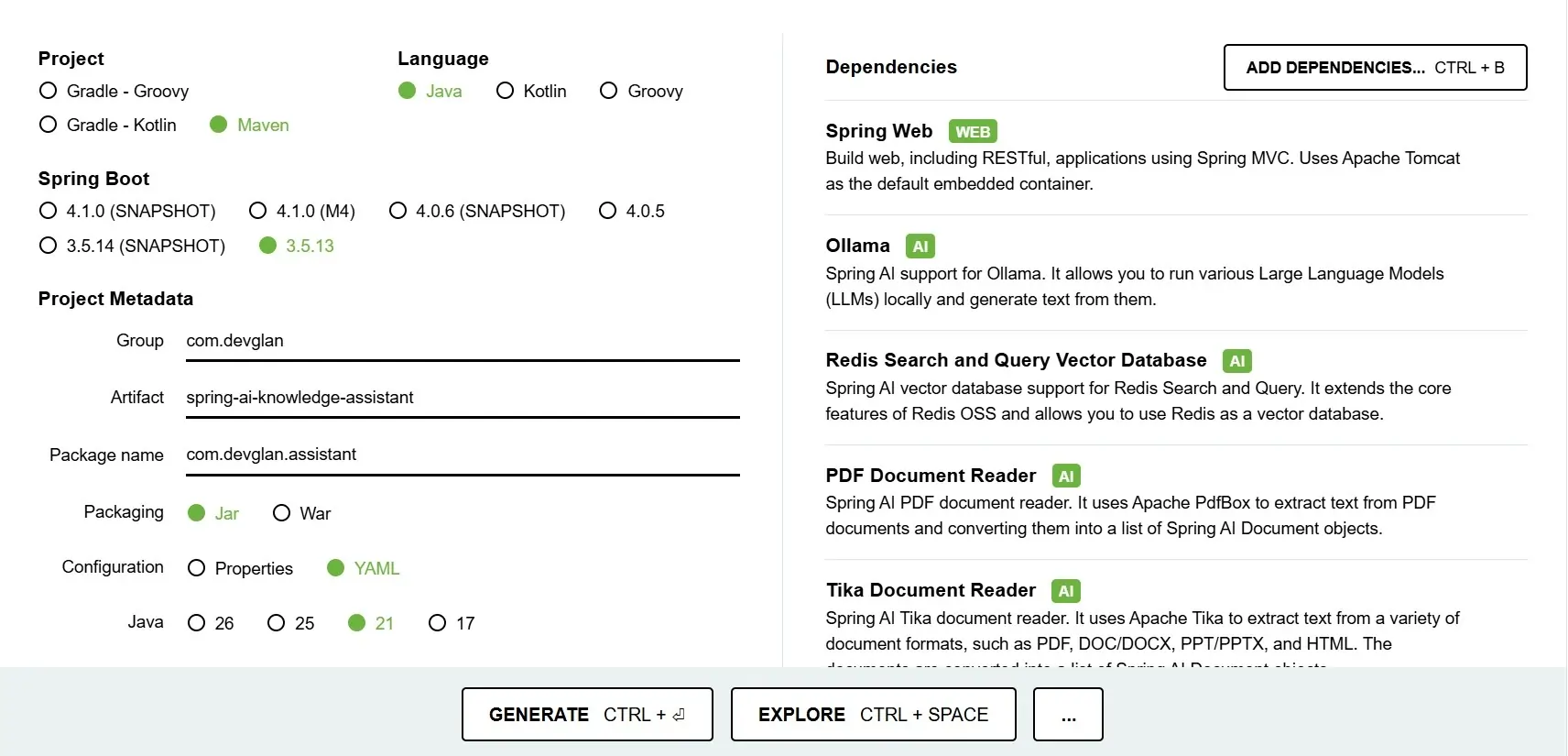
let's head to Spring Initializer to generate the Spring Boot project with AI related dependencies.
Project Dependencies
While generating the project using start.spring.io, I have included a set of dependencies that form the foundation of our AI Knowledge Assistant application. Each of these plays a specific role in enabling AI capabilities, document processing, and API exposure.
- Spring Web - Used to build RESTful APIs and expose endpoints for chat interactions,document upload, and other backend operations.
- Spring AI (Ollama) - Provides seamless integration with Ollama, allowing us to runand interact with Large Language Models (LLMs) locally for chat completion and AI responses. Ollama - runs 100% locally, no API key, no cloud cost.
- spring-boot-starter-data-redis - Plain Redis (not Redis Stack) - used for answer TTL storage in SemanticCacheAdvisor.
- Redis Search and Query Vector Database - Enables Redis to act as a vector database, which will be used in later parts of the series for storing and querying embeddings efficiently.
- Spring AI Vector Store - Provides a simple in-memory/file-based vector store implementation, which we will use initially to store and retrieve embeddings before moving to more advanced vector databases like Redis or PGVector.
- PDF Document Reader - Helps in extracting text content from PDF files using Apache PDFBox,which is useful for processing uploaded documents.
- Tika Document Reader - Extends document support beyond PDFs by allowing extraction of text from multiple formats like DOC, DOCX, PPT, and more using Apache Tika.
These dependencies ensure that our application is ready for handling AI interactions, document ingestion, and future enhancements like semantic search and vector-based retrieval.
Integrating Spring AI with Ollama (Local LLM Setup)
To run our AI models locally, we will use Ollama, which allows us to easily download and run Large Language Models (LLMs) on our machine without relying on external APIs.
Follow the below steps to install and set up Ollama on a Windows system:
-
Install Ollama
Download the Windows installer from:
Ollama download
and install it usingOllamaSetup.exe. - Verify Installation
OpenPowerShellorCommand Promptand run:
If installed correctly, this should display available commands.ollama -
Download Required Models
We will use one model for chat and another for embeddings:
ollama pull llama3.2 # chat model (~2 GB) ollama pull nomic-embed-text # embedding model (~274 MB) -
Verify Ollama is Running
Run the following command:
If everything is set up correctly, you should see a response like:curl http://localhost:11434
Ollama is running
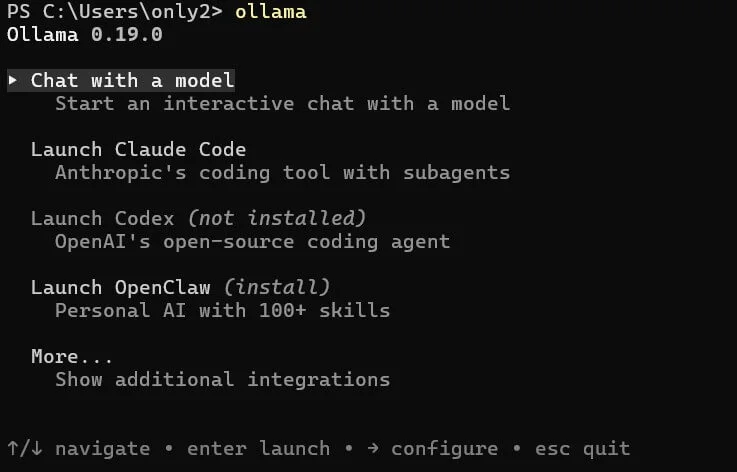
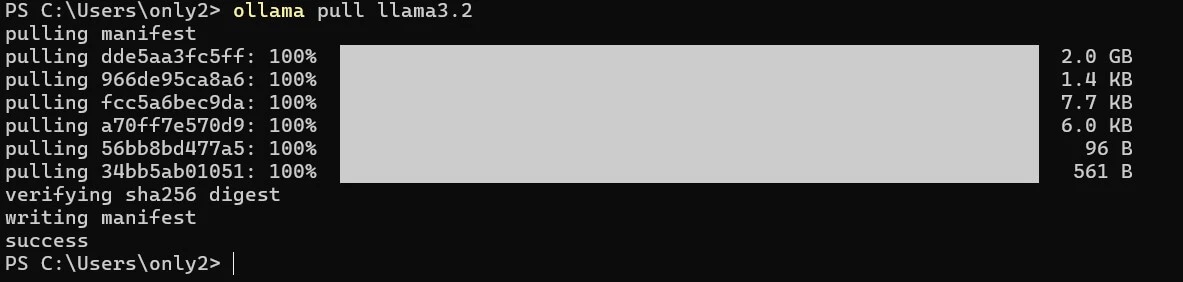
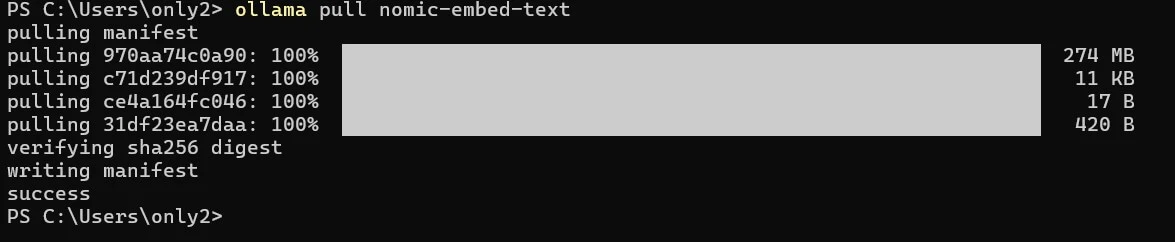
At this point, Ollama is up and running locally, and we are ready to integrate it with our Spring AI application.
Integrating Spring AI with Ollama
Now that Ollama is up and running locally, the next step is to integrate it with ourSpring Boot application using Spring AI. This allows us to send prompts to the LLM and generate responses directly from our backend.
Spring AI provides built-in support for Ollama, and we can configure it easily using the application.yml file as shown below after importing the project that we created through Spring initializer.
ai:
  ollama:
    base-url: ${OLLAMA_BASE_URL:http://localhost:11434}
    chat:
      options:
        model: ${OLLAMA_CHAT_MODEL:llama3.2}
        temperature: 0.3
        num-ctx: 8192
    embedding:
      options:
        model: ${OLLAMA_EMBEDDING_MODEL:nomic-embed-text}
    init:
      pull-model-strategy: never
      timeout: 60s
Configuration Params Explanation
- base-url - Specifies the URL where Ollama is running. By default, it points to
http://localhost:11434. This can be overridden using the environment variableOLLAMA_BASE_URL. - chat.options.model - Defines the LLM used for generating chat responses. Here we are using
llama3.2, but this can be changed via theOLLAMA_CHAT_MODELenvironment variable. - chat.options.temperature - Controls the randomness of responses. Lower values (like
0.3) produce more deterministic and factual outputs, while higher values make responses more creative. - chat.options.num-ctx - Represents the context window size (in tokens). A higher value allows the model to process larger inputs (like long documents), but it also requires more system memory.
- embedding.options.model - Specifies the model used to generate embeddings. We are using
nomic-embed-text, which is optimized for RAG use cases and offers a good balance between performance and accuracy. - init.pull-model-strategy - Controls whether models should be automatically downloaded at application startup. Setting this to
neverensures that models are managed manually usingollama pull, avoiding unexpected delays during startup. - init.timeout - Defines the timeout for initializing the Ollama client. This ensures the application doesn’t hang indefinitely if Ollama is unavailable.
With this configuration in place, our Spring Boot application is now fully connected to the local Ollama instance and ready to handle both chat and embedding use cases. But since we are only focussing on ETL pipeline in this particular section, let's go ahead and do the required spring config document ingestion.
Understanding RAG Document Ingestion Pipeline (ETL Explained)
The ETL pipeline stands for Extract -> Transform -> Load. In our application, this pipeline is implemented using the DocumentIngestionService.
The DocumentIngestionService class is responsible for handling the complete document ingestion pipeline in the application. It acts as the entry point for bringing external data—such as files or raw text—into the system and preparing it for AI-powered retrieval.
At a high level, document ingestion follows an ETL (Extract -> Transform -> Load) approach. The service first extracts content from uploaded files using appropriate readers (PDF-specific or Apache Tika for other formats). It then transforms the content by splitting it into smaller, meaningful chunks using a token-based strategy to preserve context. Finally, these chunks are converted into vector embeddings and stored in the configured VectorStore.
public class DocumentIngestionService { private static final int CHUNK_SIZE = 800; private static final int MIN_CHUNK_SIZE_CHARS = 350; private final VectorStore vectorStore; private final AtomicInteger totalChunks = new AtomicInteger(0); public int ingestFile(MultipartFile file) { String filename = file.getOriginalFilename() != null ? file.getOriginalFilename() : "unknown"; String contentType = file.getContentType() != null ? file.getContentType() : "application/octet-stream"; log.info("Ingesting file '{}' (type={}, size={} bytes)", filename, contentType, file.getSize()); try { Resource resource = toResource(file, filename); Listdocuments; if (isPdf(filename, contentType)) { documents = readPdf(resource); } else { documents = readWithTika(resource); } return splitAndStore(documents, filename); } catch (IOException ex) { throw KnowledgeAssistantException.internalError( "Failed to read file: " + filename, ex); } } public int ingestText(String content, String sourceName) { if (content == null || content.isBlank()) { throw KnowledgeAssistantException.badRequest("Content must not be blank"); } log.info("Ingesting plain text from source '{}'", sourceName); Document doc = new Document(content, buildMetadata(sourceName)); return splitAndStore(List.of(doc), sourceName); } public int getTotalChunks() { return totalChunks.get(); } private Map<String, Object> buildMetadata(String source) { return Map.of( "source", source, "ingestedAt", Instant.now().toString() ); } private Resource toResource(MultipartFile file, String filename) throws IOException { return new ByteArrayResource(file.getBytes()) { @Override public String getFilename() { return filename; } }; } }
In essence, this class forms the backbone of the RAG pipeline by transforming raw data into structured, searchable knowledge that can be efficiently queried by the AI model.
  vector-store:
    persistence-path: ./data/vector-store.json
E - Extract (Reading the File)
In this phase, the uploaded file is read and converted into a structured format.
Uploaded File
    |
isPdf?
    -> PagePdfDocumentReader   (for PDFs: page-aware, removes headers/footers)
    -> TikaDocumentReader      (for other formats: DOCX, TXT, HTML, MD, etc.)
    |
List (raw text, one Document per page/file)
PDF Document Reader
private boolean isPdf(String filename, String contentType) { return filename.toLowerCase().endsWith(".pdf") || "application/pdf".equalsIgnoreCase(contentType); } private ListreadPdf(Resource resource) { var config = PdfDocumentReaderConfig.builder() .withPageExtractedTextFormatter( ExtractedTextFormatter.builder() .withNumberOfBottomTextLinesToDelete(3) .withNumberOfTopPagesToSkipBeforeDelete(1) .build()) .withPagesPerDocument(1) .build(); return new PagePdfDocumentReader(resource, config).get(); }
Tika Document Reader
We leverage Apache Tika, which supports 1000+ file formats out of the box, so we don’t need to write format-specific parsers.
    private List readWithTika(Resource resource) {
        return new TikaDocumentReader(resource).get();
    }
T - Transform (Chunking the Content)
Once the document is extracted, we break it into smaller chunks to make it suitable for embedding and retrieval.
List<Document> (large raw text)
    |
Add metadata:
{ source: "spring-ai-overview.txt", ingestedAt: "..." }
    |
TokenTextSplitter
  - chunkSize = 800 tokens
  - overlap   = 400 tokens   (prevents context loss at boundaries)
  - minChunkSizeChars = 350  (merges very small fragments)
    |
List<Document> (multiple smaller chunks)
private int splitAndStore(List<Document> documents, String source) { documents.forEach(doc -> doc.getMetadata().putAll(buildMetadata(source))); var splitter = TokenTextSplitter.builder() .withChunkSize(CHUNK_SIZE) .withMinChunkSizeChars(MIN_CHUNK_SIZE_CHARS) .withMinChunkLengthToEmbed(5) .withMaxNumChunks(10_000) .withKeepSeparator(true) .build(); Listchunks = splitter.apply(documents); log.info("Split '{}' into {} chunks (chunkSize={}, minChunkSizeChars={})", source, chunks.size(), CHUNK_SIZE, MIN_CHUNK_SIZE_CHARS); vectorStore.add(chunks); int count = chunks.size(); totalChunks.addAndGet(count); log.info("Stored {} chunks from '{}'. Total in store: {}", count, source, totalChunks.get()); return count; }
Chunking ensures that even large documents can be processed efficiently while retaining contextual continuity across chunks.
LLMs have a fixed context window. You cannot stuff an entire 50-page PDF into a prompt. Documents are split into smaller pieces, each embedded independently, so only the most relevant chunks are retrieved at query time.
L - Load (Embedding & Storing)
In the final phase, each chunk is converted into vector embeddings and storedfor future retrieval.
List<Document> (chunks)
    |
vectorStore.add(chunks)
    |
Embedding Model (nomic-embed-text)
    - Generates float[768] vector per chunk
    |
In-memory storage (ConcurrentHashMap)
    |
Persisted to disk - ./data/vector-store.json (on shutdown)
VectorStoreConfig.java
public class VectorStoreConfig {

    private final AppProperties properties;
    private final EmbeddingModel embeddingModel;

    private SimpleVectorStore vectorStore;

    @Bean
    public SimpleVectorStore vectorStore() {
        vectorStore = SimpleVectorStore.builder(embeddingModel).build();

        File persistenceFile = persistenceFile();
        if (persistenceFile.exists()) {
            log.info("Loading persisted vector store from: {}", persistenceFile.getAbsolutePath());
            vectorStore.load(persistenceFile);
            log.info("Vector store loaded successfully");
        } else {
            log.info("No existing vector store at {} — starting with empty knowledge base. Upload documents via POST /api/documents/upload",
                    persistenceFile.getAbsolutePath());
        }

        return vectorStore;
    }

    @PreDestroy
    public void persistVectorStore() {
        if (vectorStore == null) return;
        try {
            File file = persistenceFile();
            file.getParentFile().mkdirs();
            vectorStore.save(file);
            log.info("Vector store persisted to: {}", file.getAbsolutePath());
        } catch (Exception ex) {
            log.error("Failed to persist vector store", ex);
        }
    }

    private File persistenceFile() {
        return new File(properties.getVectorStore().getPersistencePath());
    }
}
This class is responsible for configuring and managing the lifecycle of the vector store used in the application.
It creates a SimpleVectorStore bean backed by the configured EmbeddingModel, which is used to store vector embeddings of documents.
On application startup, it checks if a persisted vector store file exists. If found, it loads previously stored embeddings, allowing the application to retain knowledge across restarts.
If no file exists, it initializes an empty vector store and logs that the system is ready to accept new document uploads.
Using the @PreDestroy hook, it ensures that all embeddings are saved to disk during shutdown, preventing data loss.
The persistence location is dynamically resolved using AppProperties, making it configurable via application.yml.
@ConfigurationProperties(prefix = "app")
public class AppProperties {

    @Valid
    private Rag rag = new Rag();

    @Valid
    private VectorStore vectorStore = new VectorStore();

    @Data
    public static class Rag {

        @Positive
        private int topK = 5;

        @Min(0) @Max(1)
        private double similarityThreshold = 0.65;
    }

    @Data
    public static class VectorStore {

        @NotBlank
        private String persistencePath = "./data/vector-store.json";
    }
}
Document Ingestion
Now let's have an endpoint for the document ingestion. This will invoke the ingestFile() to complete the ETL flow.
public class DocumentController {

    private final DocumentIngestionService ingestionService;

@PostMapping(value = "/upload", consumes = MediaType.MULTIPART_FORM_DATA_VALUE)
public ResponseEntity<IngestionResponse> uploadDocument(
        @RequestParam("file") @NotNull MultipartFile file) {

    if (file.isEmpty()) {
        throw KnowledgeAssistantException.badRequest("Uploaded file is empty");
    }

    log.info("Received document upload: '{}'", file.getOriginalFilename());
    int chunks = ingestionService.ingestFile(file);

    return ResponseEntity.ok(IngestionResponse.builder()
            .source(file.getOriginalFilename())
            .chunksStored(chunks)
            .totalDocuments(ingestionService.getTotalChunks())
            .message("Successfully ingested %d chunks from '%s'"
                    .formatted(chunks, file.getOriginalFilename()))
            .build());
}
IngestionResponse.java
@Data
@Builder
@Schema(description = "Result of a document ingestion operation")
public class IngestionResponse {

    @Schema(description = "Name or label of the ingested source", example = "spring-ai-guide.pdf")
    private String source;

    @Schema(description = "Number of text chunks stored in the vector store", example = "42")
    private int chunksStored;

    @Schema(description = "Total number of documents currently in the vector store", example = "150")
    private int totalDocuments;

    @Schema(description = "Human-readable status message", example = "Successfully ingested 42 chunks")
    private String message;
}
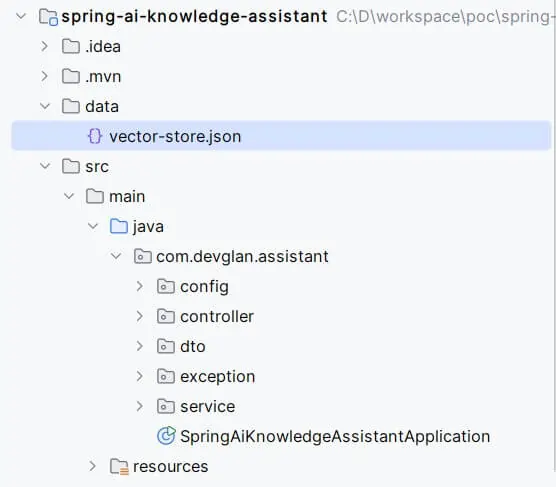
Below is the final project structure.
Real-World Use Cases
- Internal company knowledge chatbot
- Document search engine using semantic search
- AI-powered FAQ assistant
- Codebase assistant for developers
Testing the Application
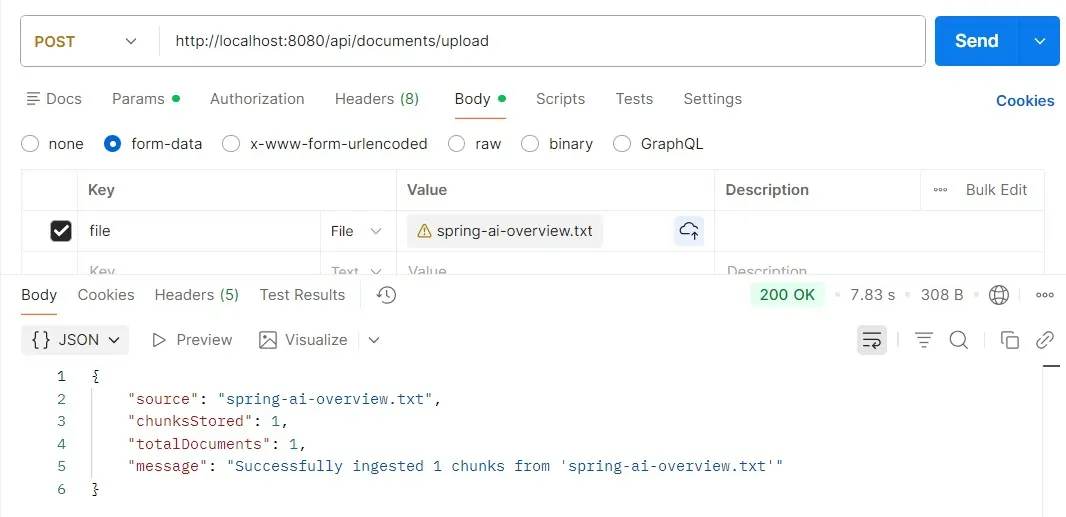
For testing the app, just run the SpringAiKnowledgeAssistantApplication.java as a Java main application and hit the ingest endpoint through Postman and check the logs to confirm the ingestion. A folder with name ./data/vector-store.json is created in the root directory which AI knows to answer the chat responses.
curl -X POST http://localhost:8080/api/documents/upload \
  -F "file=@spring-ai-overview.txt"
What's Coming Next
Now that we have built the foundation with document ingestion, chunking, and vector storage, the next step is where things get really interesting.
In the upcoming part of this series, we will build a fully functional AI-powered knowledge-based chat application using Spring AI. This will allow users to interact with their ingested data in a conversational manner.
We will introduce chat memory to maintain context across conversations, integrate Redis for caching and fast retrieval, and move beyond the in-memory store by persisting embeddings into a PgVector database for better scalability and performance.
By the end, you will have a production-ready architecture capable of handling real-world AI use cases with efficient retrieval and contextual responses.
Conclusion
You now have a working foundation for building AI-powered applications using Java and Spring AI. If you're serious about learning AI in the Java ecosystem' this is your starting point.
Stay tuned for Part 2 where we build the chat layer on top of this!